
Does your resume say you know Excel… but you’ve never actually used it? Let’s fix that. In this video, I’ll walk you through Excel from scratch, step by step. You’ll learn the core basics you actually need to get started, including how to enter data, format your spreadsheet, use tables, create charts, and even useContinue reading “Excel Tutorial for Beginners (Start Here)”
Category Archives: Microsoft
Make your Own Agents in Copilot | Complete Tutorial
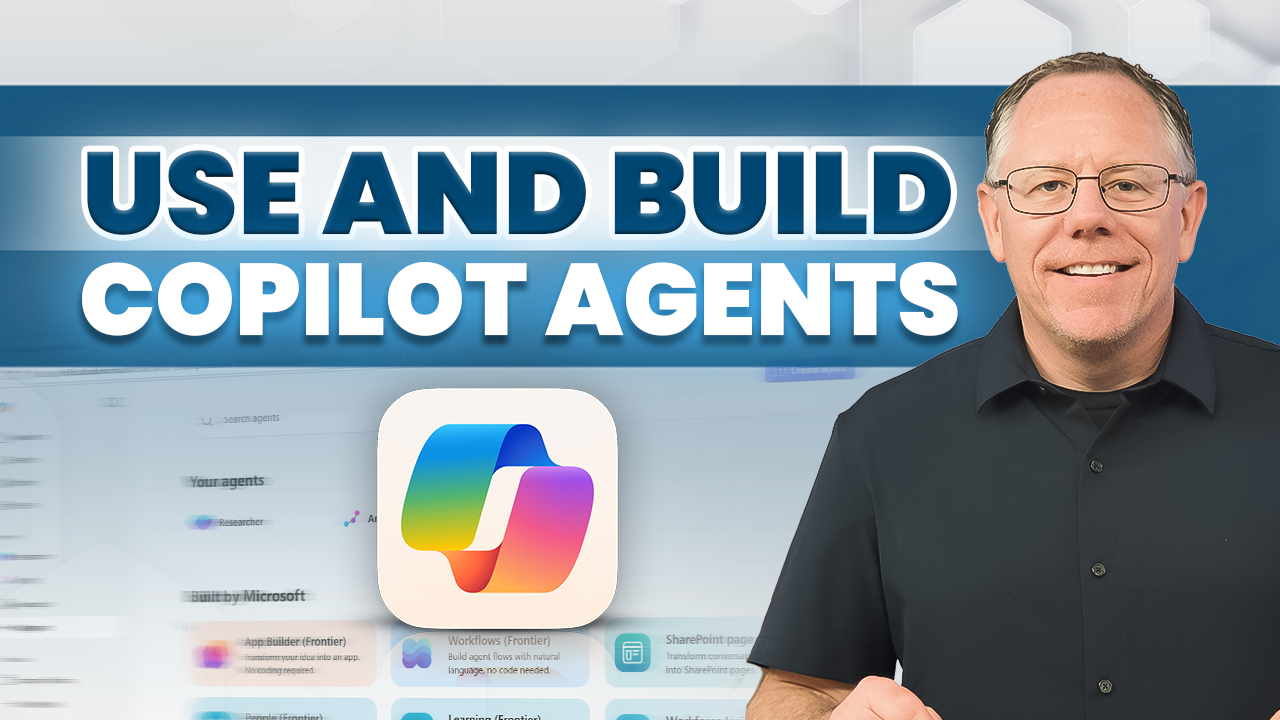
Copilot Agents are specialized AI assistants that can handle tasks or answer questions within specific, defined parameters. You can use agents in Copilot or make your own agents using the Copilot Agent Builder or Copilot Studio. Agents can even work autonomously or link to applications, facilitating workflows across multiple applications. This video shows how agentsContinue reading “Make your Own Agents in Copilot | Complete Tutorial”
Microsoft Copilot for Organizations – Complete Tutorial
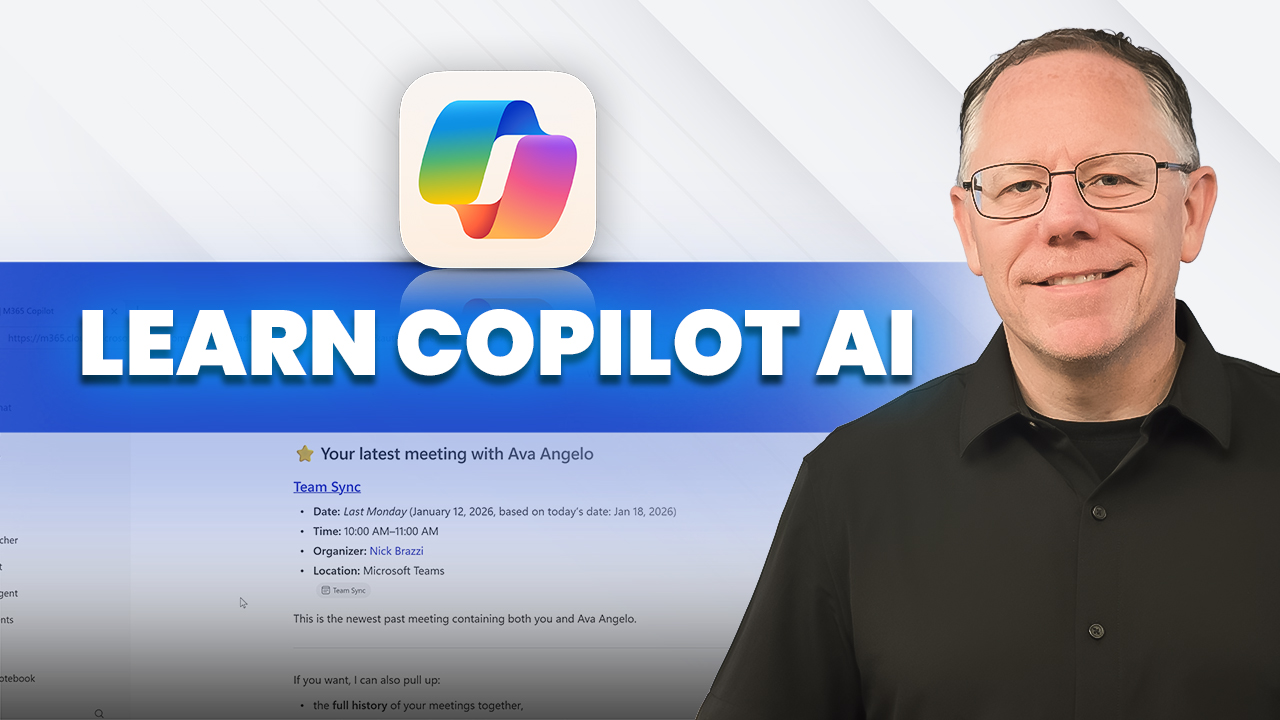
Confused about Microsoft Copilot licensing or unsure of what version you actually have? This complete Microsoft Copilot tutorial breaks it all down. If your company has a Microsoft 365 Business or Enterprise subscription, you may already have access to Copilot features — but understanding the differences between the built-in capabilities and the full Microsoft 365Continue reading “Microsoft Copilot for Organizations – Complete Tutorial”
Microsoft Copilot (Free Version) – Complete Tutorial
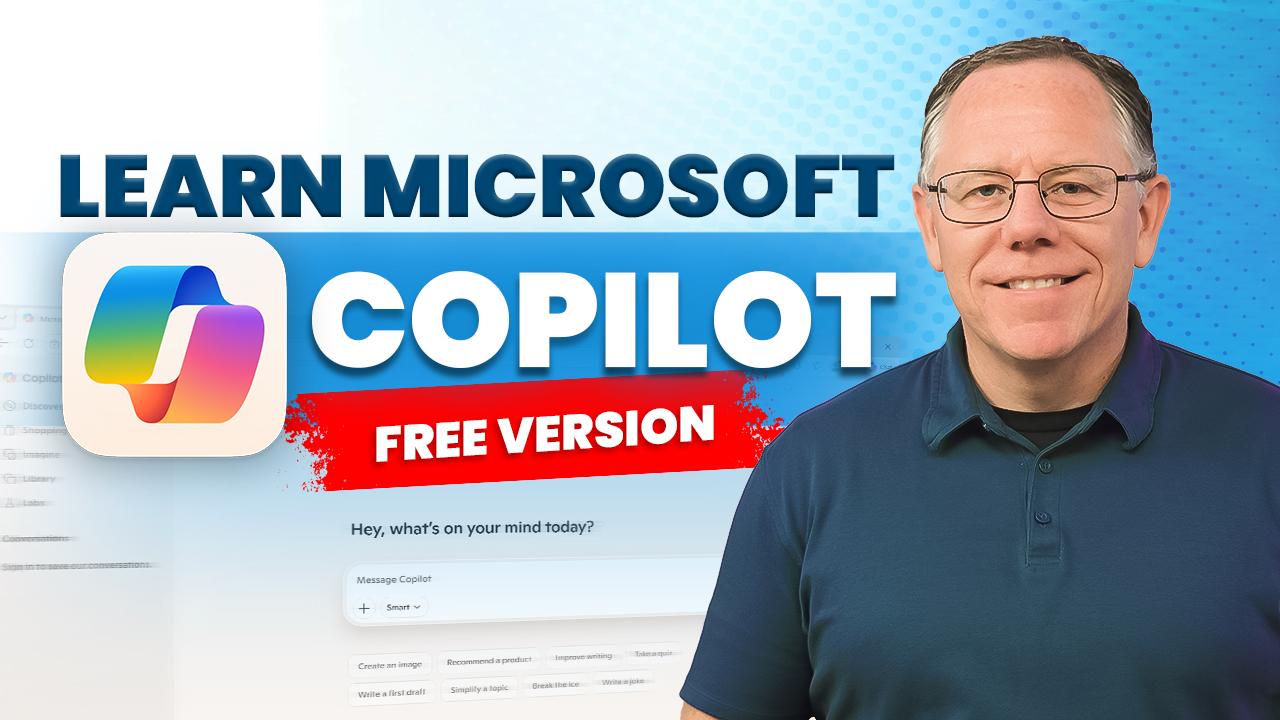
Microsoft’s AI assistant, Copilot, is available for free, and this video will show you everything you need to know to put it to work. There are different versions of Copilot, including some that are included in paid Microsoft 365 Subscriptions. However, this video focuses only on the free version available at copilot.microsoft.com. Learn how toContinue reading “Microsoft Copilot (Free Version) – Complete Tutorial”
How to Mail Merge in Word (Step-by-Step Tutorial)

Need to send hundreds of personalized emails in just a few minutes? In this step-by-step tutorial, I’ll show you exactly how to use Mail Merge in Microsoft 365 by connecting Excel to Word and sending emails through Classic Outlook. You’ll learn how to: Important: Mail Merge requires the classic desktop version of Outlook. It doesContinue reading “How to Mail Merge in Word (Step-by-Step Tutorial)”
Outlook Calendar Tips & Tricks (2026 Edition)
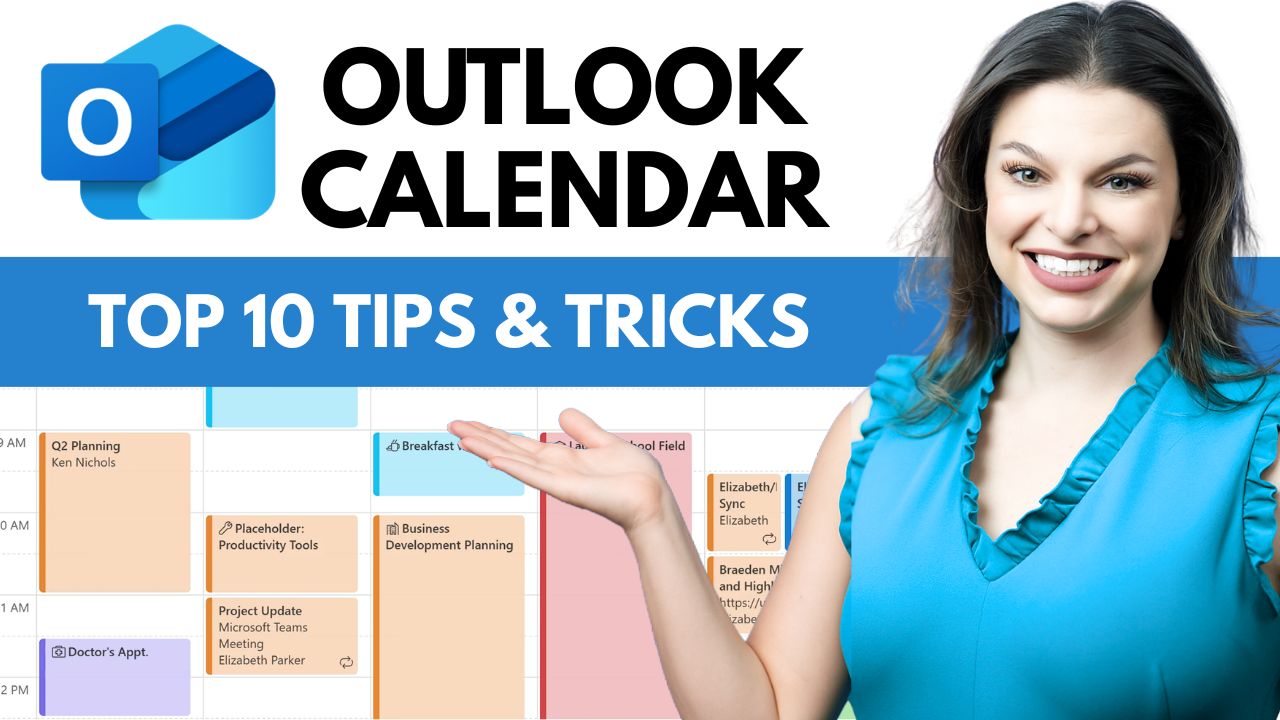
Want to get more done in less time using Microsoft Outlook Calendar? In this video, I’ll walk you through 10 powerful Outlook Calendar tips and tricks that will instantly boost your productivity and help you manage meetings, scheduling, and time blocking like a pro. Whether you’re using Outlook for work, managing a busy team, orContinue reading “Outlook Calendar Tips & Tricks (2026 Edition)”
How to Merge Cells in Excel (Without Losing Data)

Merging cells in Excel seems simple… until it breaks your spreadsheet. In this video, I show you exactly how Merge and Center works, and why it can cause serious problems when sorting, filtering, or analyzing data. Host: Kevin Stratvert
How to Transfer Photos from Android to Laptop

Want the fastest and most reliable way to transfer photos and videos from your Android phone to your Windows PC? In this step-by-step tutorial, I’ll show you exactly how to move thousands of photos at once using a simple USB cable. You’ll learn how to import photos using the built-in Windows Photos app, how toContinue reading “How to Transfer Photos from Android to Laptop”
How to Create Outlook Email Signature

Want a professional email signature that looks great in both the new Outlook desktop app and Outlook on the web? In this step-by-step tutorial, I’ll show you exactly how to create, format, and manage email signatures—including how to use Microsoft Copilot to generate a signature with a photo in seconds. In this video, you’ll learn:Continue reading “How to Create Outlook Email Signature”
Complete File Sharing in Microsoft 365 – OneDrive, Outlook, Teams, and SharePoint
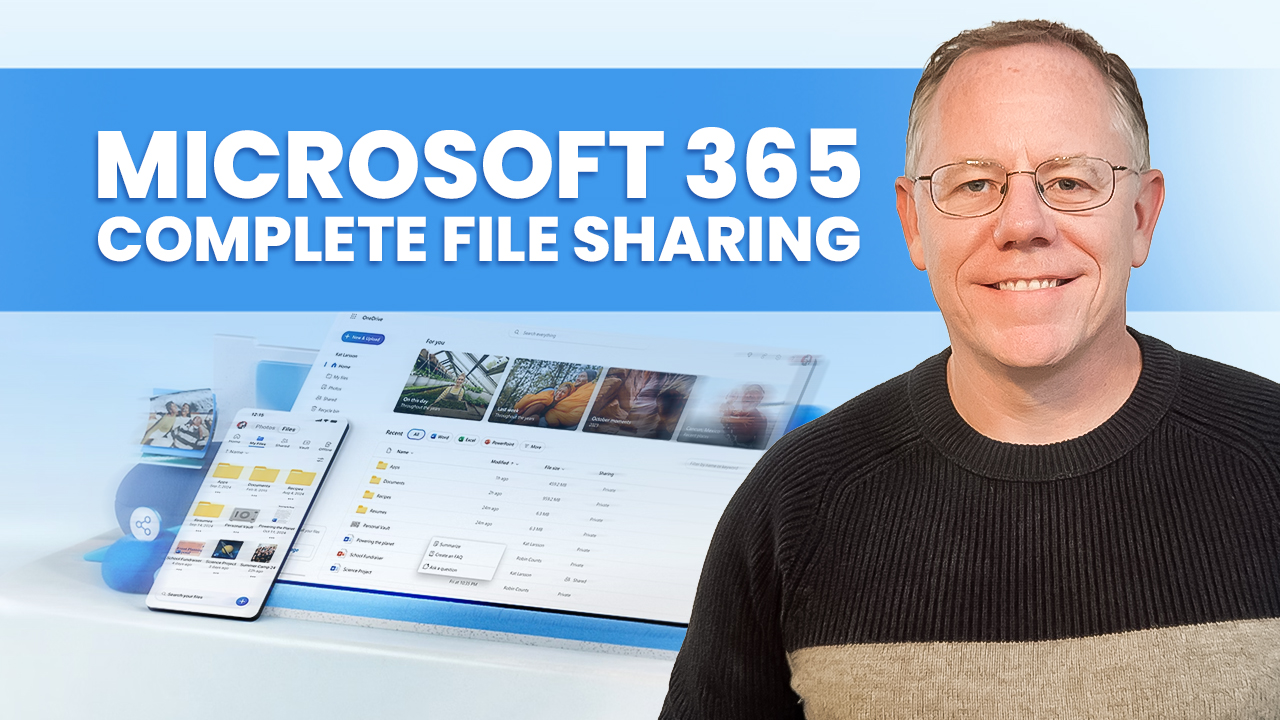
Sharing files in Microsoft 365 applications can be very easy. But, with a little extra work, you can take complete control over the specific permissions each person has on a shared file and change those permissions later. If you’ve ever struggled to manage your shared files in Microsoft 365 apps like OneDrive, Outlook, Microsoft Teams,Continue reading “Complete File Sharing in Microsoft 365 – OneDrive, Outlook, Teams, and SharePoint”
 Kevin Stratvert