
Learn how to upload music, audio, and song files, like mp3, mp4, ogg, or wav, to YouTube in this step-by-step tutorial using the Windows 10 Photos app. I show you how to add an image or a video as background for your music.
Requirements
- An audio file that you want to upload to YouTube.
- A picture that can be shown with the audio file when the audio file plays in YouTube.
Steps how to upload music to YouTube
- Open the Windows Photos Apps by typing in Windows explorer and opening Photos app

- This opens the Windows Photos App.

- Navigate to the Video Editor tab

- Click “New video project” button to create a new video. Save the video with your custom name.

- This opens the Video editor .
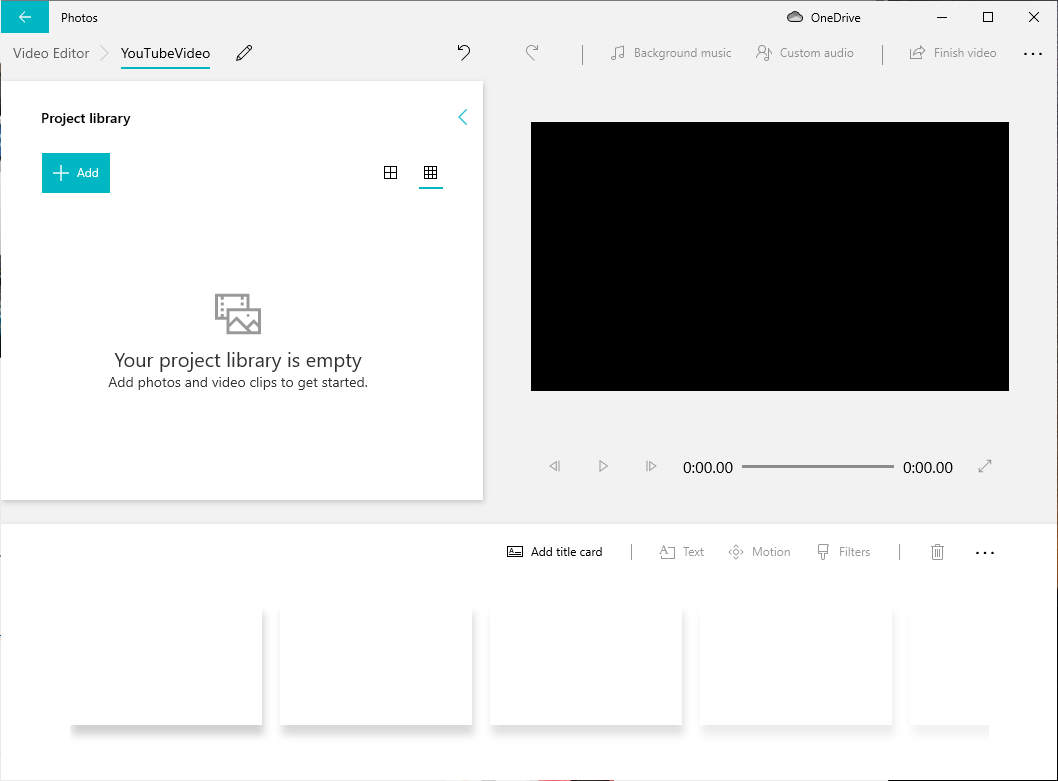
- Drag a your picture that you want to display when the audio plays in YouTube into the Project library.
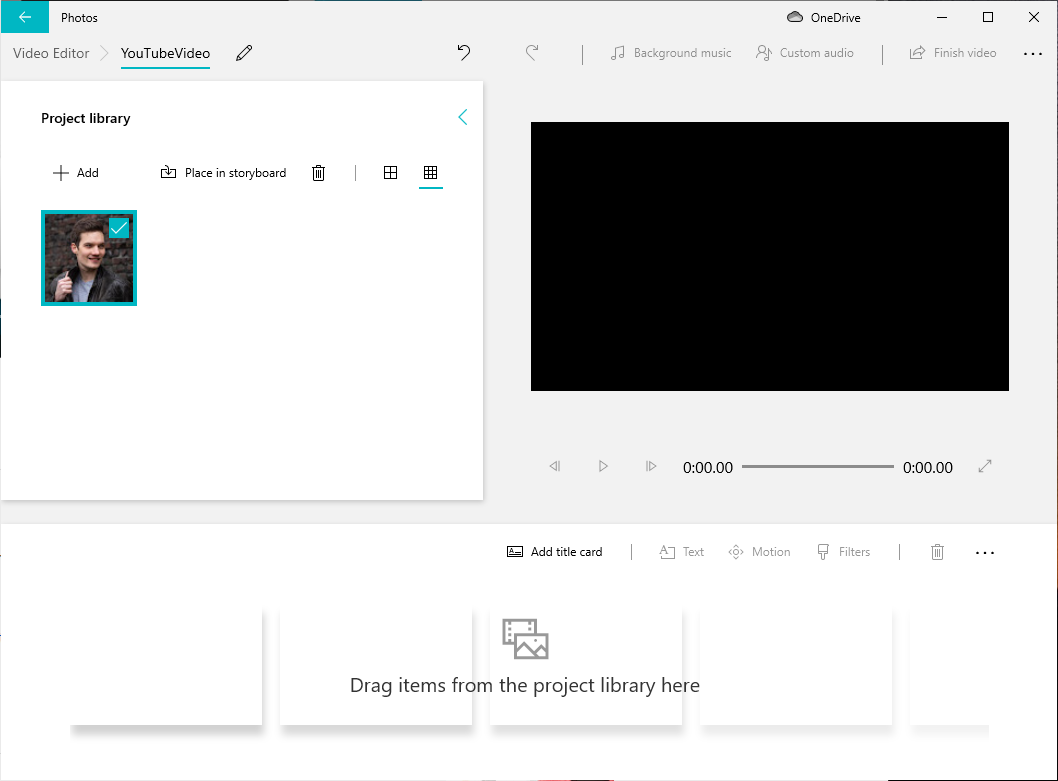
- Right-click the photo and select “Duration”.

- Update the photo duration to length of song in seconds. In this way the photo will be displayed for the entire length of the song.

- Click the “Custom Audio” button.
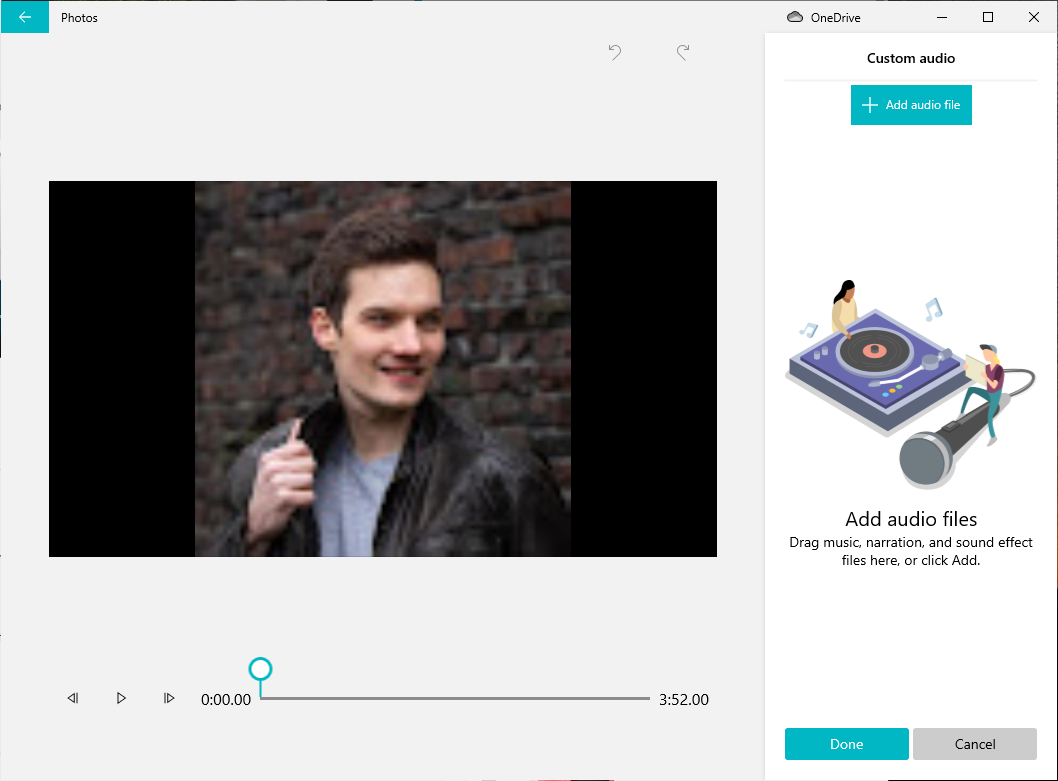
- Click the “Add audio file” option
- Select the audio file in File Explorer to add it to your Video file.

- Click “Finish Video”
- Select the video quality you prefer.
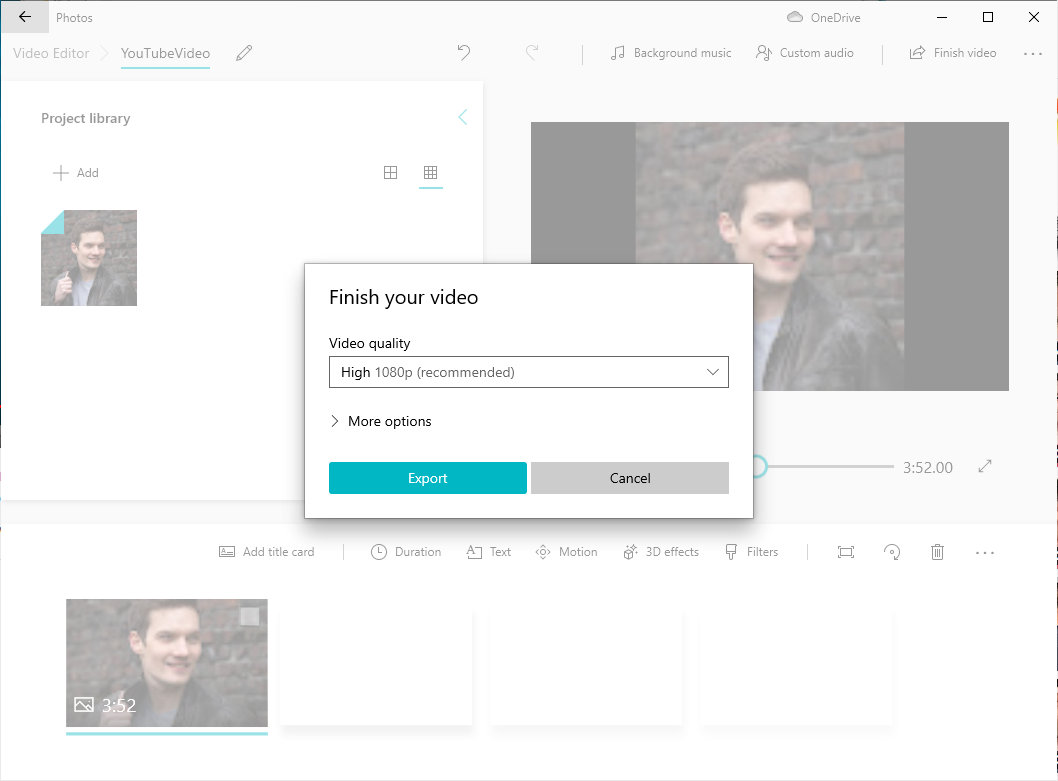
- Select “Export” and choose a location in File Explorer to save the video file. This creates the video and opens it and starts playing it.

- Close the Video App.
- Open Internet browser and navigate to YouTube.com.
- Click + button in the upper right hand corner of the Internet browser.
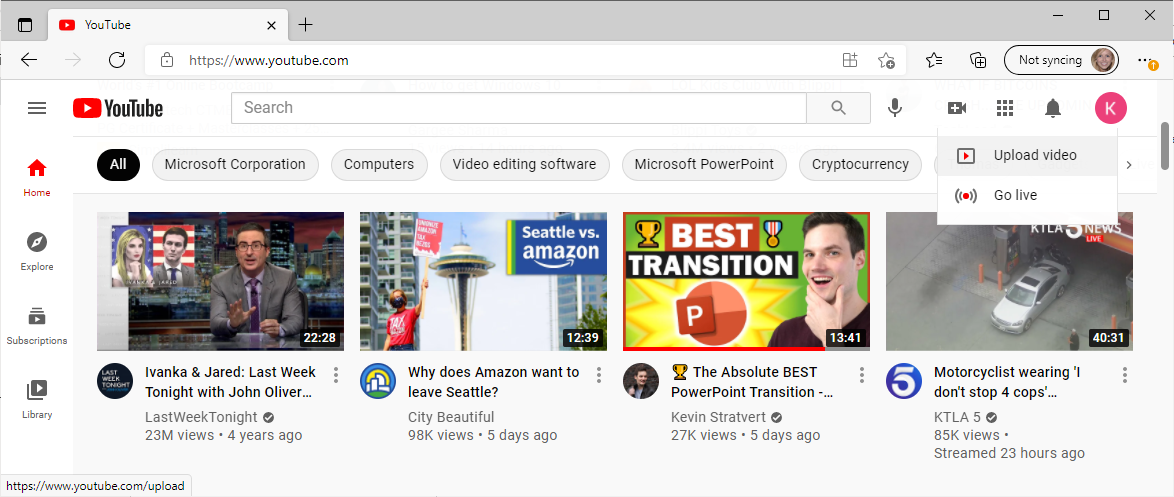
- Click “Upload Video” and select the video file you created in Step1 14.

- Enter in the required information using the Next options including the video title, if the content is made for Kids and the visibility for the video.
- Select Save to upload the video to your Channel.
- You have now uploaded your music video to your Channel!
 Kevin Stratvert