Today we’re going to look at how you can use Verizon Mobile for Microsoft Teams or what’s known as Teams Phone Mobile. This is perfect for companies in the United States who have Microsoft Teams or are planning to move to Microsoft Teams.
With this, you can use a single mobile number as your Microsoft Teams phone number, which lets you make external calls. Out of the box, you can’t do this with Microsoft Teams.
Receive a Call
When you receive a call with a Verizon Mobile Phone provided by your employer, it’ll ring across all your different devices, that way you won’t miss it. You can answer the call just like you would any other phone call. You don’t even have to open the Microsoft Teams app. It automatically routes the voice call through Microsoft Teams behind the scenes.

Call Quality and Presence
The call is treated as a standard voice call over Verizon’s LTE Network even though it’s going through Microsoft Teams.
When you answer the call on your mobile phone, your presence or status in Teams automatically updates. This lets all your coworkers know you’re on a call.

Uplift call
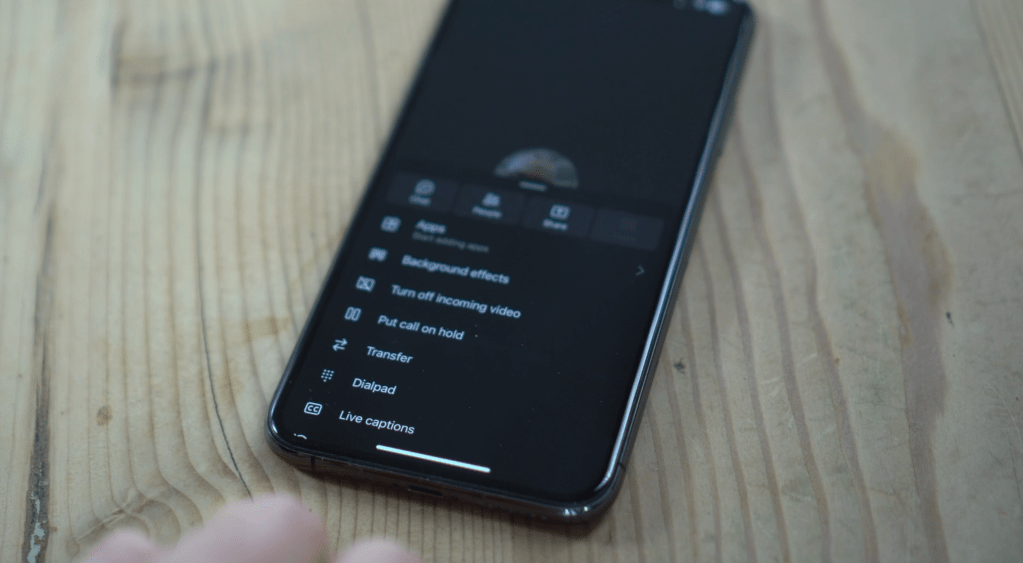
With a traditional phone call, you’re only able to chat and you can’t show anything else. With Verizon Mobile for Microsoft Teams, you can uplift the call. Simply open the Microsoft Teams app on your phone or desktop while on a call. Click on the “Move call to Teams” button, and this now transforms the call from just a call into a full Microsoft Teams experience. You get all the richness and interactivity of a Teams call. The beautiful thing is that it’s completely seamless, and it doesn’t drop the call and there was no need to reconnect. It just works.

Now that you’ve uplifted the call, you can turn on video, share slides, and chat.
Call history
With Verizon Mobile for Microsoft Teams, can view the call history on your phone or directly within Microsoft Teams. You get a shared call log between all your devices. You even get a shared voicemail box across all your devices.
Cost savings
Not only is the experience really seamless, but you just pay for your mobile number. There’s no need for any expensive hardware, a fixed line system, or any of those overhead costs.
Admin Portal
To set this up, within the Microsoft Teams Admin Center, on the left, click on Voice and then Operator Connect. Click on Verizon Mobile for Microsoft Teams. Here, you can add Verizon Mobile as your operator. Simply fill out this form.

Next, you’ll need either a new or existing Verizon Mobile account. Once you have that, Verizon can provision you with phone numbers. You’ll also need to enter your Microsoft tenant ID into Verizon to tie Verizon Mobile and Teams together.

Next, within the Microsoft Admin Center, you’ll need to assign a license for Teams Phone Mobile to the user.

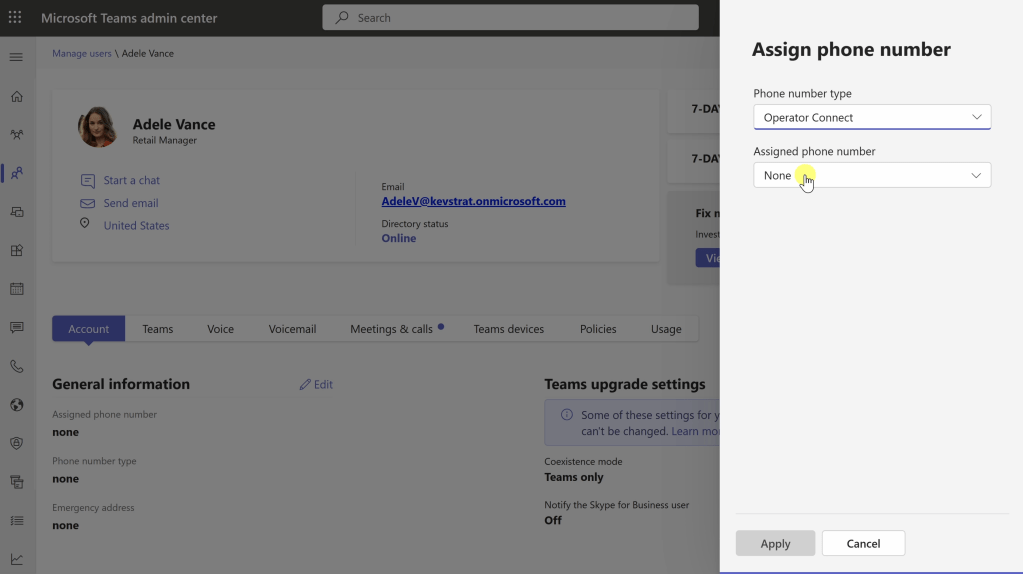
After that, in the Teams Admin Center, click into manage users and you can assign a phone number.
Compliance and Security
On the left in the Microsoft Teams Admin Center, you can also set compliance policies, and you have all sorts of options that you can configure. For example, you can use cloud recording for calling, so it aligns with your organization’s compliance recording solution.
Wrap Up
To get started with Verizon Mobile for Microsoft Teams, you can head to the following website to request a consultation: verizon.com/mobileformicrosoftteams
 Kevin Stratvert
kevin what a best tutorial thanks
LikeLike