
WHISPER AI
In this step-by-step tutorial, learn how to use OpenAI’s Whisper AI to transcribe and convert speech or audio into text. Whisper AI performs extremely well and better than most human transcribers. It also outperforms most other speech to text tools in most environments.
INSTALL GOOGLE COLABORATORY
- Visit Google Drive and setup your Google account if you don’t already have one setup.
- In the top left hand corner, click the New button-> More->Connect more apps.
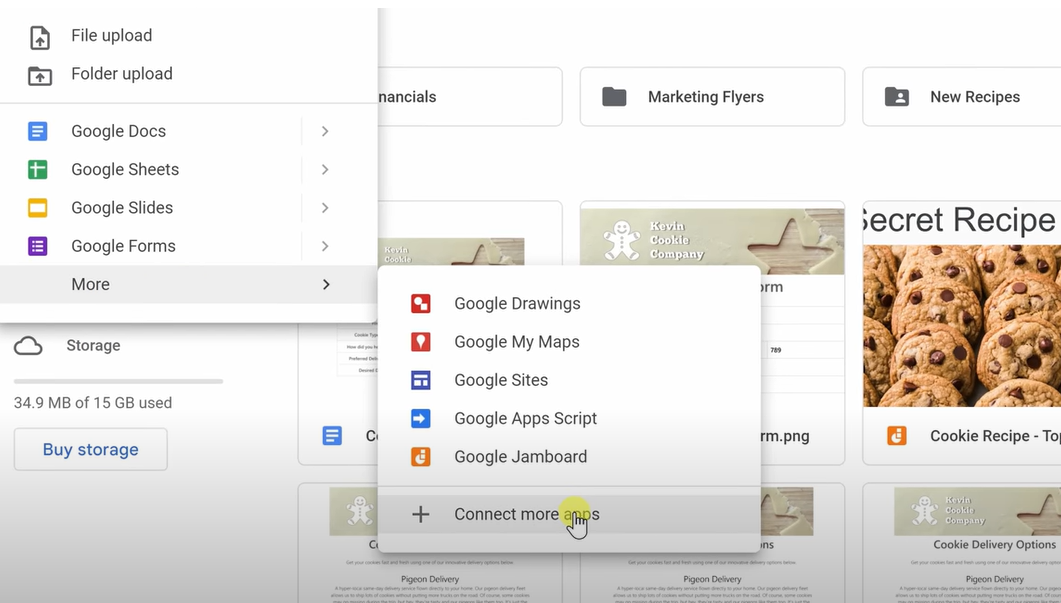
- In the search field at the top of the dialog, type in Google Colaboratory and search.
- Select the first option “Colaboratory”
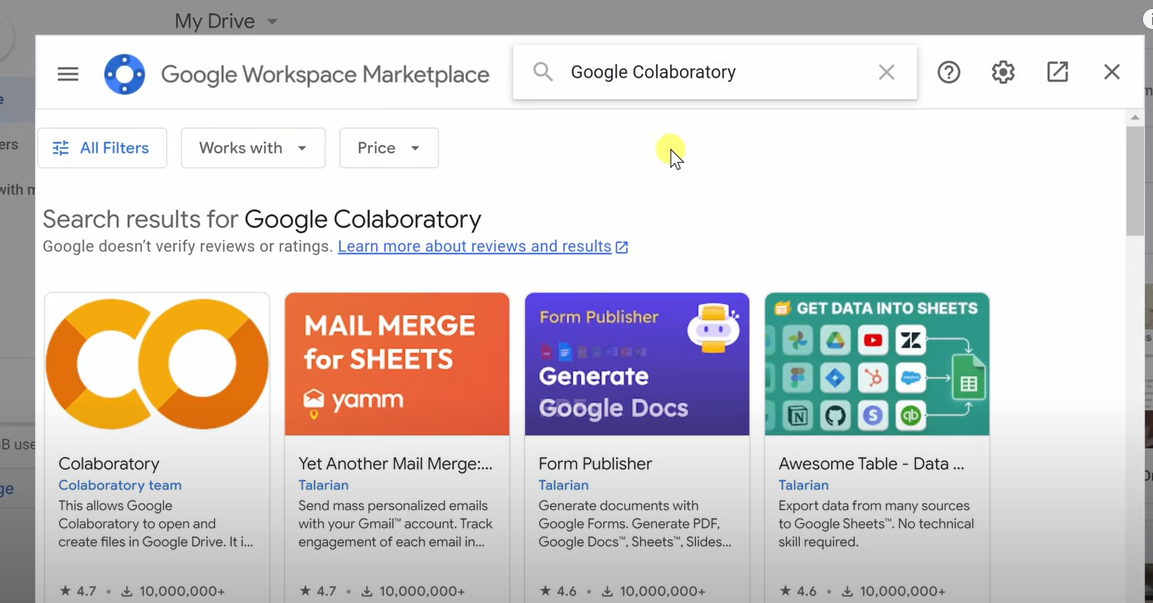
- Click the Install button, then Click Continue and hit OK to the button that Google Colaboratory is connected to Google Drive.
- Colaboratory has been installed.
- Click the Done button and close out the “Connect more apps” window.
- You have now installed Google Colaboratory.
CONFIGURE GOOGLE COLABORATORY
- Visit Google Drive and setup your Google account if you don’t already have one setup.
- In the top left hand corner, click the New button-> More->Colaboratory.
- This opens Colaboratory.
- In the top left hand corner, give the file a name by selecting Untitled.ipynb and renaming it to something more useful.
- Click the “Runtime” menu and select “Change runtime type” to open the “Notebook settings” dialog
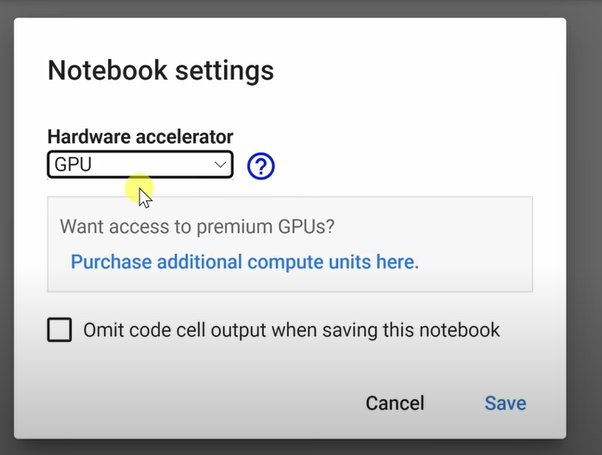
- Set the “Hardware accelerator” to “GPU”. This will set it to use the graphics card where Whisper AI runs best.
- You have now configured Google Colaboratory.
INSTALL WHISPER AI ON GOOGLE COLABORATORY
- After following the previous steps in Google Colaboratory, open Colaboratory.
- Paste in the following code into the Colaboratory editor to install whisper and ffmpeg(support for audio and video files) to Colaboratory:
!pip install git+https://github.com/openai/whisper.git!sudo apt update && sudo apt install ffmpeg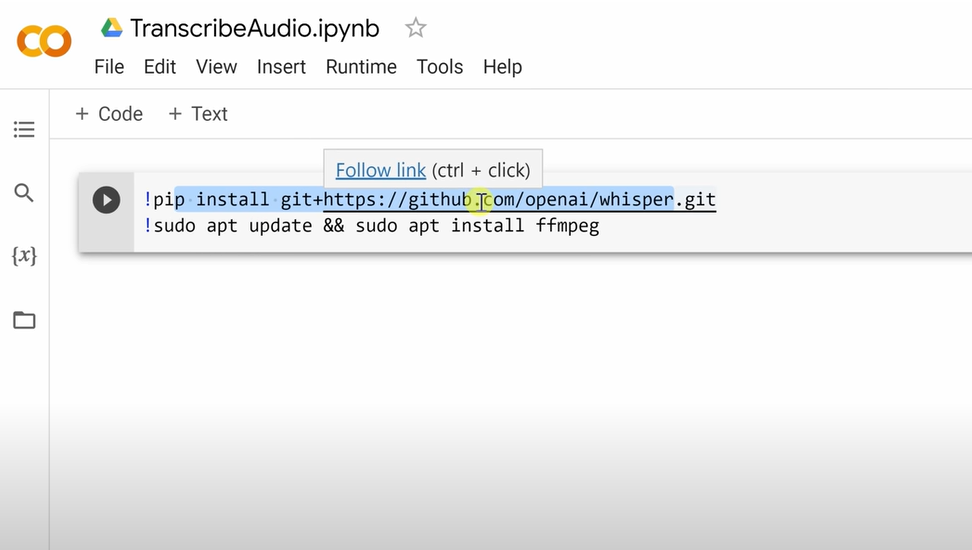
- Select Run icon to run the code to install Whisper and ffmpeg. It should take ~20 seconds.
RUN WHISPER AI
- After following the previous steps in Google Colaboratory, open Colaboratory.
- Click the Folder icon on the left hand navigation menu
- Drag and drop in the audio or video you want to transcribe.
- Click “OK” to the “Reminder, uploaded files will get deleted when this runtime is recycled.” dialog box.
- The file has been uploaded and you should see it under the Folder menu in the left navigation menu.
- Click to the code menu and paste in the following code to run Whisper on the file :
!whisper "ENTER FILE NAME HERE" --model medium.en- Replace “ENTER FILE NAME HERE” with the name of the file you want to transcribe.
- Replace medium.en with the model you would like to use- tiny, base, small, medium or large where tiny is the fastest, smallest and with the least accuracy and large takes longer, is a larger file and with highest quality model.
- Click the Run icon to run the code.
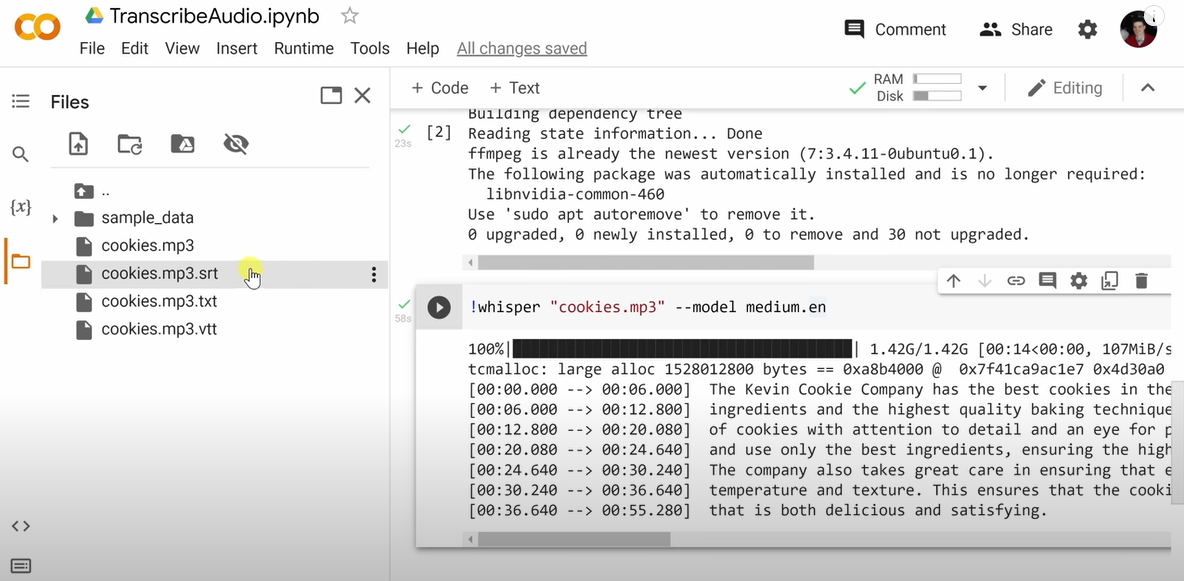
- You can see the transcript. You can also see 3 files added to the Folder- FILE.mp3.srt, FILE.mp3.txt and FILE.mp3.vtt files
- FILE.mp3.txt contains all the text from the audio
- FILE.mp3.vtt and FILE.mp3.srt are caption formats with timestamps
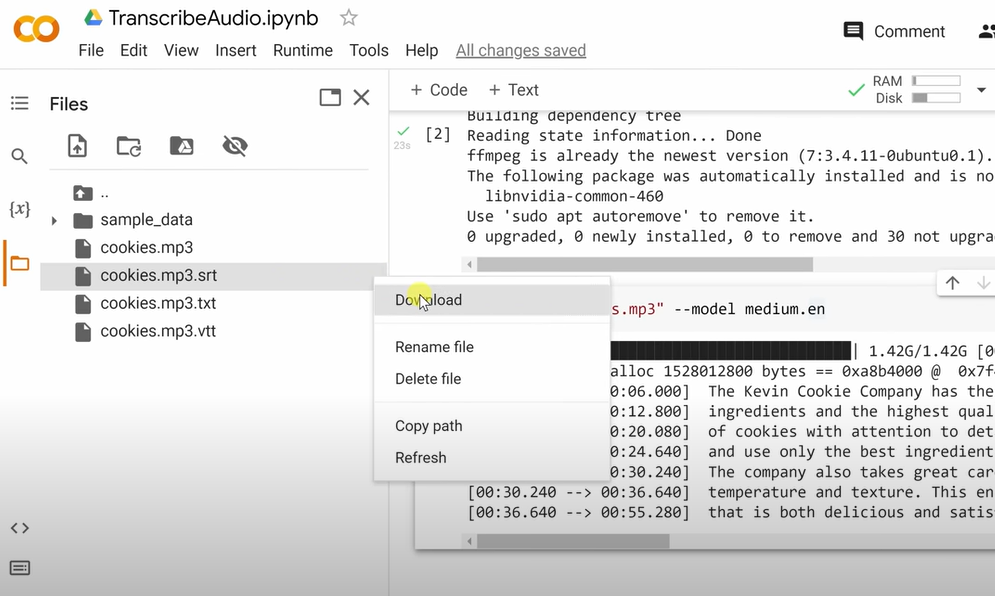
- To download the files, hover over the FILE.mp3.*, select the ellipsis menu and select Download.
RESOURCES
- 💥SPECIAL OFFER Get 99% accurate transcripts, captions and subtitles with Rev — the #1 speech-to-text service in the world. https://rev.pxf.io/DVGe7G (Disclosure: Signing up through this link gives me a small commission to support videos on this channel. The price to you is the same.)
- Whisper GitHub page
- Google Drive
 Kevin Stratvert
Hi Brian,
I have followed these instructions to the letter and cannot get a result. See the two attachments. Any ideas?
Cheers John
John Devenish 0434 389 068
LikeLike
Thank you Kevin for the excellent article!
LikeLiked by 1 person
Glad it was helpful!
LikeLike
Great explanation Kevin. I wonder how to apply it for a Portuguese transcription. Could you give me some hints on that? Thank you very much!!!
LikeLike
Hi Fabio,
The following code worked for me, in my case, in Spanish.
!whisper “audio1561784797.m4a” –model medium –language {“es”}
–language {af,am,ar,as,az,ba,be,bg,bn,bo,br,bs,ca,cs,cy,da,de,el,en,es,et,eu,fa,fi,fo,fr,gl,gu,ha,haw,he,hi,hr,ht,hu,hy,id,is,it,ja,jw,ka,kk,km,kn,ko,la,lb,ln,lo,lt,lv,mg,mi,mk,ml,mn,mr,ms,mt,my,ne,nl,nn,no,oc,pa,pl,ps,pt,ro,ru,sa,sd,si,sk,sl,sn,so,sq,sr,su,sv,sw,ta,te,tg,th,tk,tl,tr,tt,uk,ur,uz,vi,yi,yo,yue,zh,
Afrikaans,Albanian,Amharic,Arabic,Armenian,Assamese,Azerbaijani,Bashkir,Basque,Belarusian,Bengali,Bosnian,Breton,Bulgarian,Burmese,Cantonese,Castilian,Catalan,Chinese,Croatian,Czech,Danish,Dutch,English,Estonian,Faroese,Finnish,Flemish,French,Galician,Georgian,German,Greek,Gujarati,Haitian,Haitian Creole,Hausa,Hawaiian,Hebrew,Hindi,Hungarian,Icelandic,Indonesian,Italian,Japanese,Javanese,Kannada,Kazakh,Khmer,Korean,Lao,Latin,Latvian,Letzeburgesch,Lingala,Lithuanian,Luxembourgish,Macedonian,Malagasy,Malay,Malayalam,Maltese,Mandarin,Maori,Marathi,Moldavian,Moldovan,Mongolian,Myanmar,Nepali,Norwegian,Nynorsk,Occitan,Panjabi,Pashto,Persian,Polish,Portuguese,Punjabi,Pushto,Romanian,Russian,Sanskrit,Serbian,Shona,Sindhi,Sinhala,Sinhalese,Slovak,Slovenian,Somali,Spanish,Sundanese,Swahili,Swedish,Tagalog,Tajik,Tamil,Tatar,Telugu,Thai,Tibetan,Turkish,Turkmen,Ukrainian,Urdu,Uzbek,Valencian,Vietnamese,Welsh,Yiddish,Yoruba}
LikeLike
No words to say Kevin…You are a gifted person…….
LikeLike
Been using it this week, and I got you to thank for it.
LikeLike
Would like to learn more
LikeLike
It’s a great job!
Thanks Kevin!
LikeLike
Thanks for this very helpful guide! However, using Colaborative to upload mp4 files (or any files of some size) takes forever. Could you help figure out how to redirect Whisper to a google directory where I can upload my files much faster?
Much love,
Andreas, Norway
LikeLike
Thanks your sharing!
I have a question.
When I upload an audio file that is around 50MB and cannot work.
Would you like to share some ideas to fix it?
By the way, the transcribing process costs over 10 minutes, I saw you just spent 58 seconds and get done! Is the computer memory problem?
LikeLike
Hi Kevin. Thanks a million. Please do tell about the code of translation into Spanish and for the Large size. Thanks
LikeLike
Funktioniert nicht mehr es kommt immer eine Fehlermeldung.
/bin/bash: whisper: command not found
LikeLike
When i try using the run command, i get an error: /bin/bash: whisper: command not found
Any idea why?
LikeLike
You have to install the Whisper program first
LikeLike
Thank you so much this was very helpful. Just wondering how should be the new code if the recording is in another language like Italian or Spanish?
LikeLike
thanks, Keven, for the great articles. Don’t you think we need to have How to install Whisper on your pc blog or article? thank you in advance!
LikeLike
This is a great article. After watching the video. You are a great guy
LikeLike
I’m not able to paste the code : /
LikeLike
Thank you so, so much! This is helping me writing my papers in so much less time.
LikeLike
Excellent article! and great youtube tutorial. One thing is missing. how to expand the line with the propper language. Its now based on en and would be nice to describe the parameters that can be used. Overall verry good tutorial!
LikeLike
Hi Kevin, Can you please help. The code was brilliant. Ive been using it for the past few weeks and it as woking well. But recently it stop transcribing, whenever I try to use it I get this (/bin/bash: line 1: whisper: command not found).
LikeLike
Thanks Kevin. How could we use this to transcribe a video with two languages in it (e.g. English and Hindi)
LikeLike
I have a problem: When i transcribe a video, ffmpeg fails to load because of an outdated version, can anyone help me?
LikeLike
hi
I want to transfer Dutch video, the code is
!”Cam_1_-_2024.01.21_13.27.12.mp4″ –model medium –language {“de”}
but said “whisper: error: unrecognized arguments: –language {“de”}”,
how can I solve it?
LikeLike
hi
I want to transfer Dutch video, the code is
!whisper ”Cam_1_-_2024.01.21_13.27.12.mp4″ –model medium –language {“de”}
but said “whisper: error: unrecognized arguments: –language {“de”}”,
how can I solve it?
LikeLike
Does Whisper send data back to the OpenAI servers while/after transcribing? I’m asking because of the confidentiality of the data used.
LikeLike
It should all run locally. If you’re concerned, you can always disconnect from the network while running Whisper.
LikeLike