
Introduction to Copilot in Microsoft Loop
In this step-by-step tutorial, learn how to use Copilot in Microsoft Loop. Microsoft Copilot is a new advanced AI developed by Microsoft. It’s kind of like having a really smart helper who can write text, make tables, code, and even summarize text.
Microsoft Loop is a new app that makes collaboration much easier. It’s also now generally available. With Loop, you can work together with others in real-time. You can even embed components in email, Microsoft Teams, Word, Excel, PowerPoint, and other apps. When someone updates a component in one app, say a number in a table in an email, that change will immediately appear in all the other apps, like in a Teams message. This way you’ll never have content that is out of sync. The following video runs through how and why to use Microsoft Loop.
Step 1: Accessing Microsoft Loop
Open your web browser and navigate to the Microsoft Loop website. Remember, anyone with a Microsoft account can use Loop for free, but for Copilot, you’ll need a work or school account and a Copilot license, which currently costs $30/month.
Step 2: Starting Your Project in Loop
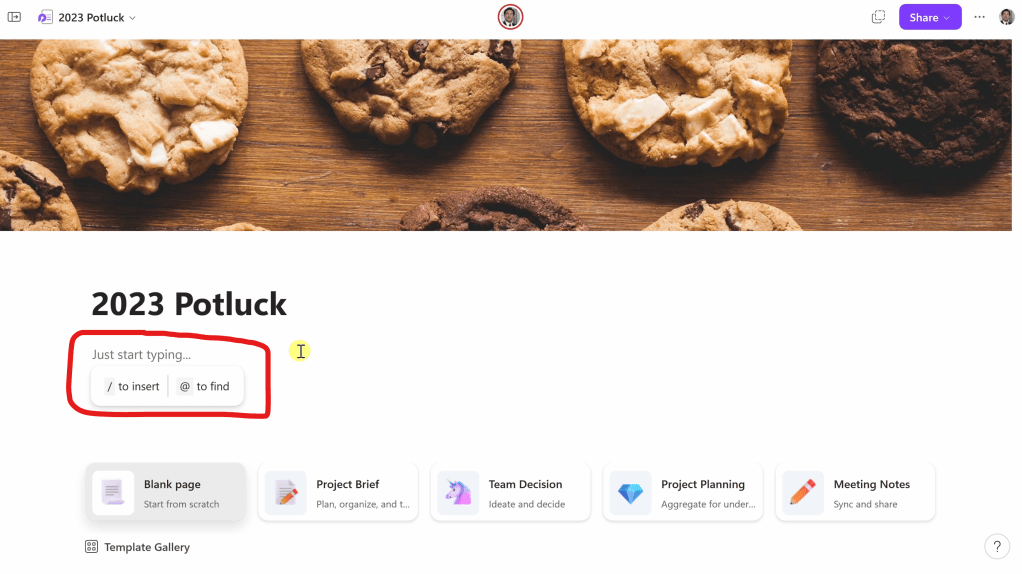
Once you’re in Microsoft Loop, create a new page for your project. For example, I’m planning the Kevin Cookie Company’s 2023 potluck. Start by drafting your event invitation right on this page.
Step 3: Engaging Copilot for Content Drafting
Now, let’s get Copilot rolling. Click on the ‘Insert’ overlay or press the forward slash (“/”) on your keyboard. This brings up the menu with different content blocks. Select ‘Draft page content’ to start drafting with Copilot.
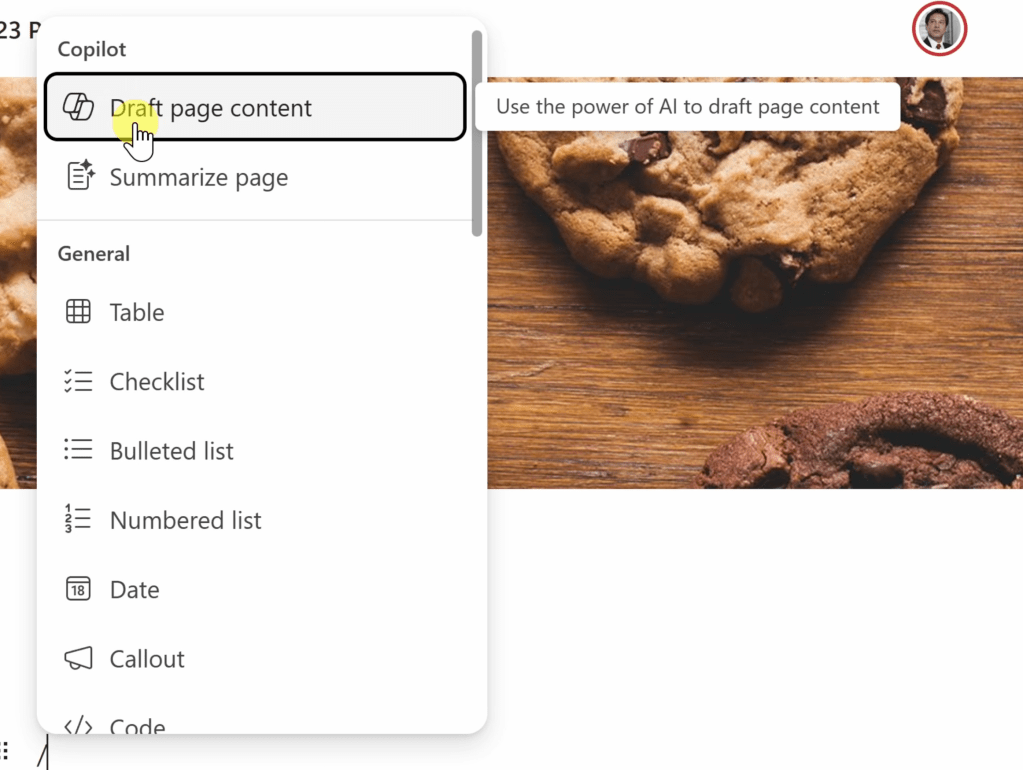
Step 4: Writing the Invitation with AI Assistance
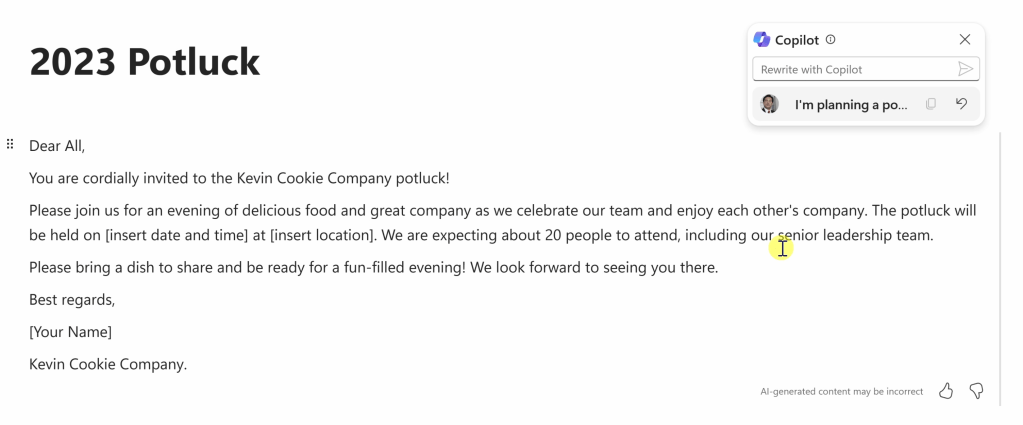
With the AI draft ready, type in your specifics. I told Copilot about the potluck, the expected attendees, and asked for help with the invitation. The AI then churns out a draft, which will serve as a base for your personalized touch.
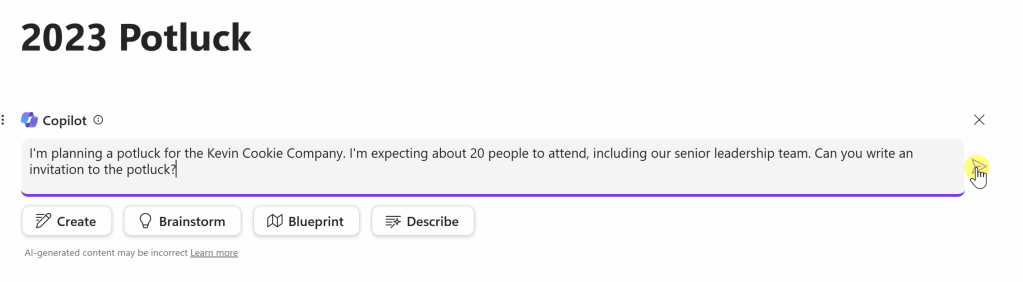
Step 5: Refining the Draft
Got the draft? Great! Now, tweak it. Insert dates, times, and personal notes. If it feels too stiff, use Copilot to add some humor or lighten the tone. Make sure it reflects the event’s spirit before finalizing.
Step 6: Organizing Attendee Contributions
Next up, let’s track who’s bringing what. Again, ask Copilot for a table format by selecting ‘Draft page content’. Specify your needs, like adding a ‘category’ column. Copilot will adjust the table accordingly.


Step 7: Integrating the Component Across Teams, Outlook, Word, Whiteboard, and other apps
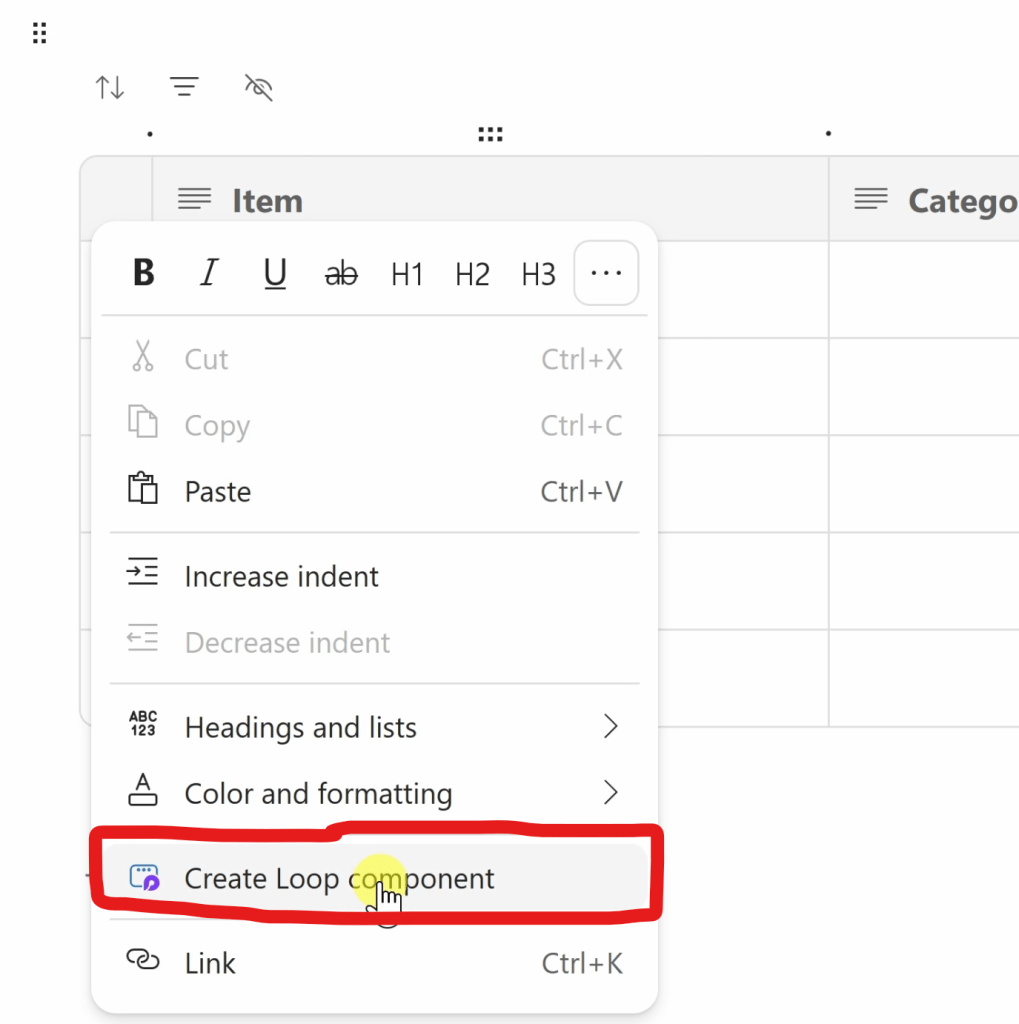
To ensure everyone’s on the same page, integrate the table across platforms like email and Teams. Convert the table into a Loop component, copy it, and paste it wherever your team collaborates. It’s that simple.
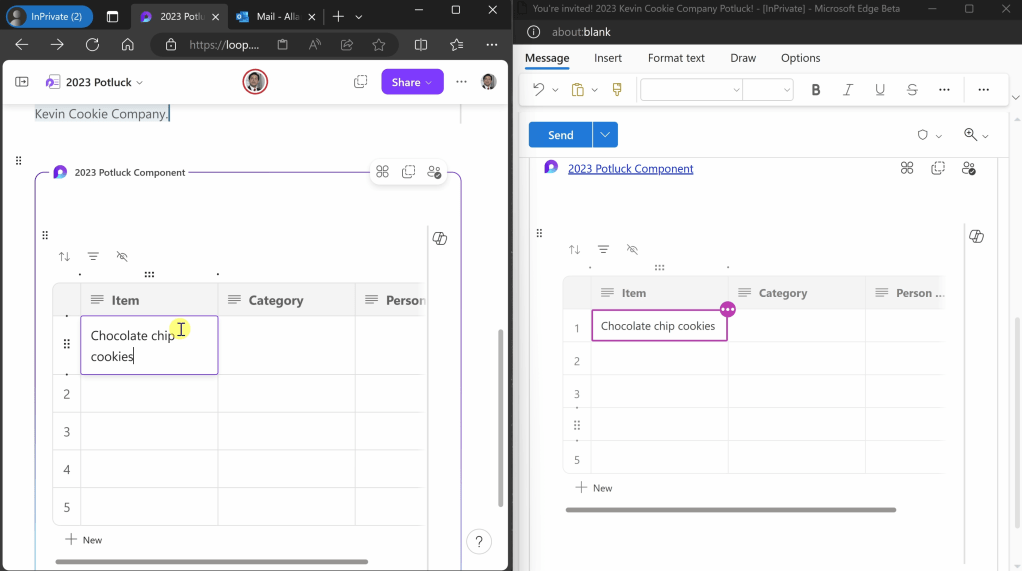
Here, for example, when I type in text into an email, the text automatically shows up in the Loop app in real-time.
Step 8: Summarizing Past Feedback with AI
If you’re like me, wanting to learn from the past, ask Copilot to summarize last year’s feedback. Just type in the forward slash, select ‘summarize page’, and let Copilot do the heavy lifting.

Step 9: Implementing Suggestions for Improvement
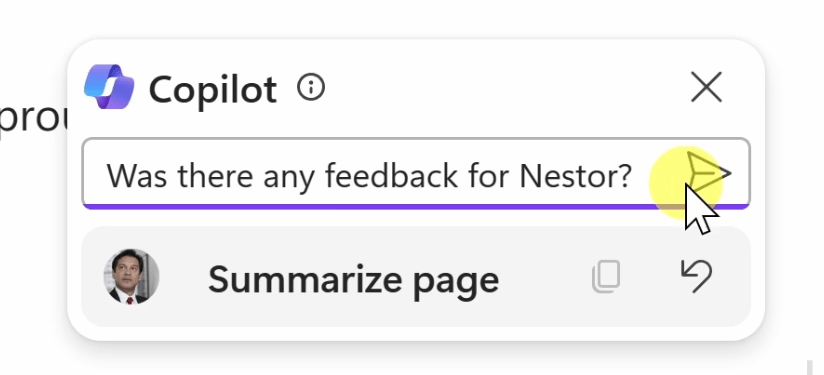
Along with getting a straight up summary, you can also ask specific questions about content on the page, like were there any follow ups for me?
Step 10: Creating Feedback Forms with Copilot’s Help
Not only does Copilot generate text, but you can also have it generate code, like HTML and PHP.

Conclusion: Embracing the Copilot Advantage
And there you have it, a step-by-step walkthrough of using Copilot in Microsoft Loop. With Copilot, tasks become easier, and productivity soars. It’s a versatile tool that adapts to a variety of Microsoft products, making your workflow smoother and more integrated. Keep exploring and enjoy the ease Copilot brings to your digital workspace! Let me know what you think in the comments below.
 Kevin Stratvert
Can i chanre the email?
LikeLiked by 1 person
Can you tell me more about what you’re trying to do?
LikeLike
Ohhh sorry
LikeLike
Hi Kevin, Do you have a video about this subject as well?
LikeLiked by 1 person
The article is based off my most recent video 👍 Let me know if there’s another video that you’re looking for.
LikeLike